
Draft my website writes a first draft of your homepage from your own answers and the facts on your current website. You review every line, and nothing reaches your website until you apply it, and even then it arrives as a draft you publish when you're ready.
Start
On your Home screen, choose Draft my website. There are seven steps, and the top of the screen shows which one you're on.
Drafting is open to the same accounts that can publish. If your email address isn't confirmed yet, the screen asks you to confirm it first.
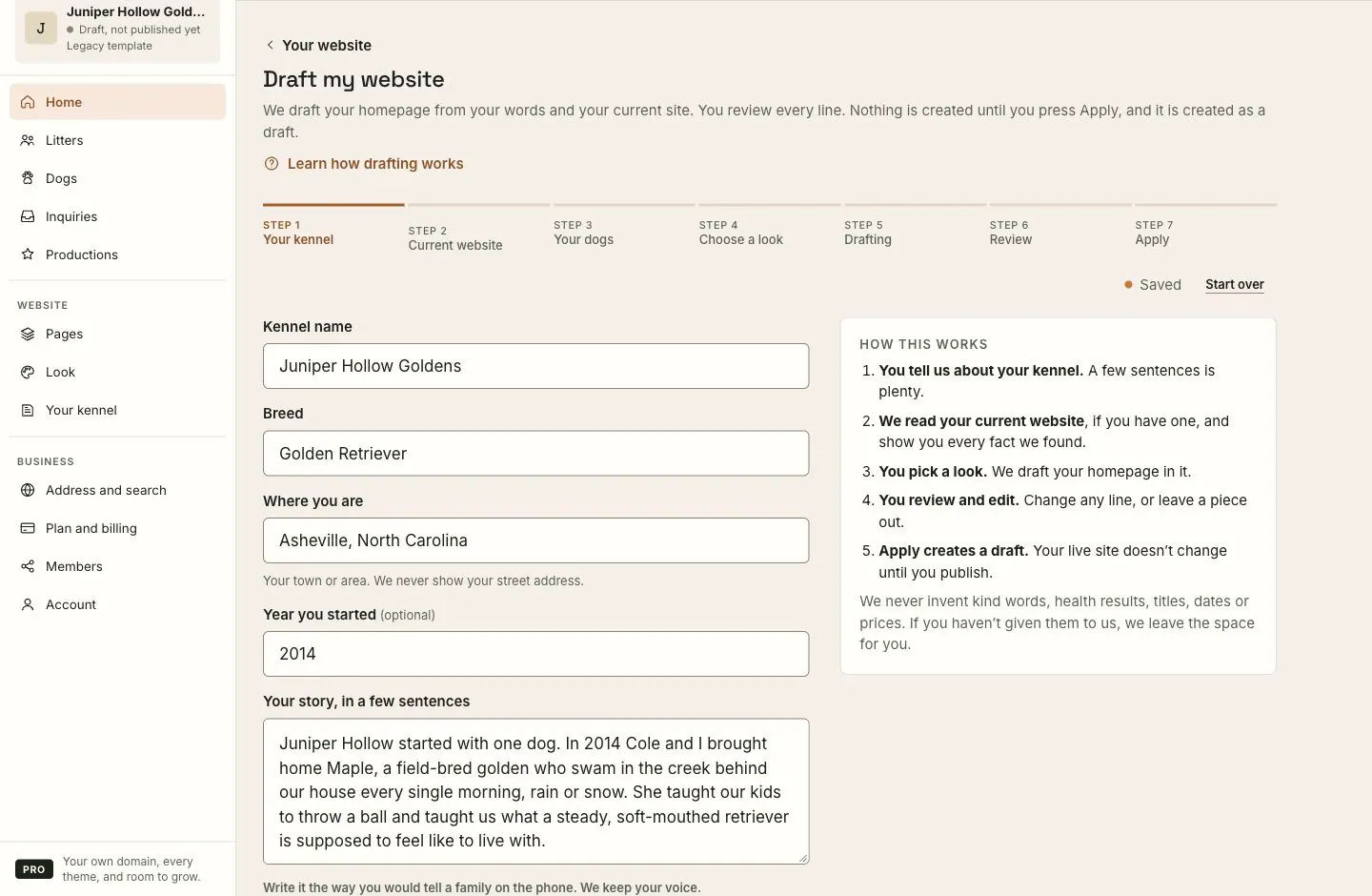
Step 1: your kennel
Answer the questions in your own words. Write the way you would talk to a family on the phone; we keep your voice.
- Kennel name is the only required answer.
- Breed, Where you are (your town or area; we never show your street address) and Year you started.
- Your story, in a few sentences.
- What you offer: puppies, stud service, or other services.
Under "The more you tell us, the more your homepage says" there are optional questions: why you breed, how your puppies are raised, the health testing you do, what comes home with each puppy, what families can expect, and your breed goals. Each answer you give becomes material for your homepage. Anything you skip, we leave out rather than make up.
Step 2: your current website
If you have a website already, type its address and press Read my site. We read its public pages and list the facts we found, each with the page it came from. Remove any fact you don't want used.
- Facebook pages and sites behind a login can't be read.
- No website yet? Press Skip this step. We draft from your answers alone.
Step 3: your dogs
Tick the dogs you want your homepage to feature. If they aren't on your website yet, use Import dogs from a spreadsheet or Add dogs without leaving the flow. See Importing your dogs from a spreadsheet.
Step 4: choose a look
Pick a template, then its colors and fonts. Your homepage is drafted in this look. You can switch any time later, and your words come with you.
Templates your plan doesn't include are marked. Drafting in one of those needs Pro.
Step 5: drafting
Press Draft my homepage. The line under the button tells you which of your drafts this uses. Drafting usually takes under a minute, and you can watch each part being written.
Going back stops the draft. A draft that is stopped, or fails, before any section is written doesn't count.
Step 6: review
Every section of your homepage is shown, written out. For each one you can:
- Edit it yourself. Edited sections are marked Your words.
- Ask for a New version of just that section.
- Leave it out, or Use it again.
New version of one section
New version writes one section again and leaves the rest of your homepage as it is. If you edited that section, a new version replaces your words, and the editor asks first. Each new version uses one of your drafts, but only if new words come back.
Redraft everything writes the whole homepage again. Tick Keep my edits and redraft only the rest to keep the sections you edited.
Step 7: apply
Press Apply as a draft. This:
- Replaces your homepage's draft with what you reviewed. Visitors still see your current homepage.
- Saves the look you chose, if it's different from your current one. The look changes on your live website straight away, the same as changing it under Look.
- Clears your saved answers.
Then choose Open the page editor to keep editing, and publish your homepage when you're happy. See Editing your site on the page.
There is no undo button for Apply. Your homepage's words aren't live until you publish, so if you change your mind, use Go back to the version visitors see in the page editor to throw the draft away.
How drafts count against your plan
Every draft and every new version counts as one. The count belongs to your website, so it's shared by everyone who edits it, and it doesn't reset.
- Free: one draft.
- Pro: one draft, plus 3 new versions.
The screen always shows how many you have left before you use one. When they're used up, you can still write and edit every line of your pages yourself.
Autosave and Start over
Your answers save as you type, up to and including the look you choose. Come back on any device and you pick up at the same step. The status beside the steps says Saved, Saving…, or if something's wrong, Couldn’t save — retrying.
Start over clears every answer you've given, on this device and any other, and goes back to step 1. It's only offered before drafting. Your website and your dogs don't change.
What to expect
- We never invent kind words, health results, titles, dates or prices. If you didn't tell us, it isn't in the draft.
- The draft fills your homepage only. Your other pages stay as they are.
- Applying doesn't publish anything except the look. You publish the homepage from the page editor.
If something goes wrong
- "We couldn’t read that website." Check the address, or skip the step and draft from your answers.
- "We couldn’t find any words on that website to read." The site may be mostly images. Skip the step and tell us more in step 1 instead.
- "That’s a lot of drafting in one hour." Wait a little and try again.
- "You’ve used every draft your plan includes." You can still edit every line yourself, or see what Pro includes on the Plan and billing screen.
- "Your homepage changed in another window. Try Apply again." Someone saved the homepage while you were reviewing. Press Apply again.
- "Couldn’t save. Reload the page to try again." Your latest answers didn't save. Reload; anything already saved is still there.
- Drafting stopped part-way. Choose Review what is ready to keep what was written, or Try again.
Still stuck? Contact support and tell us which step you were on.