
You edit your pages on the page itself. What you see in the editor is what visitors will see, and nothing you change goes public until you press Publish. This guide walks through every part of it, from adding your first piece to what happens when two people edit at once.
Open a page
- In the sidebar, under Website, choose Pages. Your homepage opens first.
- To edit a different page, use the Pages tab in the left panel. It lists Home, the pages every site has, pages your site makes for you (marked Automatic), and any pages of your own.
- To make a new page, choose Add a page at the bottom of that list.
On a narrow screen, the left panel opens from the Pages and pieces button. On a phone, a Page menu at the top switches pages and has + Add a page.
On the Pro plan, you arrange your About, Contact, dogs and litters pages the same way as Home. They open on the layout your template gives them, so nothing changes for visitors until you change something and publish. Contact always keeps its contact form: if you take the form off, visitors still see it at the bottom of the page. Your dogs and litters pages keep their web addresses, so every dog and litter page under them keeps working, and the All litters piece lists every litter the way your template does.
On other plans, these pages follow your template and can't take new pieces. You change what they show by editing your dogs, litters and story on their own screens. If you open the Add tab on one of these pages, it says so.
Pieces, sections and columns
A page is built from three things:
- Pieces are the parts of a page: an opening banner, a grid of featured dogs, a contact form, questions and answers, and so on.
- Sections are the bands that run across the page, top to bottom. Each section holds one or more columns.
- Columns sit side by side inside a section. Each column holds pieces, one under another.
On a phone, your visitors see the columns of a section stacked one after another, in order.
The kinds of piece
The Add tab sorts pieces into three groups:
- Basics are plain building blocks for a page in your own words: a Heading, Text (with bold, italic, links and lists), a Photo with a caption, a Button that leads to one of your pages or another website, and a Divider. A basic piece you haven't filled in yet stays off your public site.
- Your words pieces hold what you type, such as the opening banner, a contact form or the story of where your dogs live.
- Shows your content pieces fill themselves from what you have already entered elsewhere, such as your dogs, your litters, your health testing or the kind words families have sent you.
When you select a piece that shows your content, the right panel says where that content comes from and gives you a button to edit it there.
The Live mark
Some pieces carry a small Live mark: Featured dogs, Featured litter, your stud service piece, Health testing and At a glance. These pieces show your dogs or litters automatically and stay up to date on their own. Editing the page can't change what they show.
To change it, press or hover over the Live mark and follow its link to the right screen, or edit the dogs or litters themselves. A change there shows up in the piece without publishing the page again.
Add a piece
- Open the Add tab in the left panel.
- Drag a piece onto the page and drop it where you want it. While you drag, a New section drop zone appears between sections if you want the piece in a band of its own.
- Or select a spot on the page first, then tap a piece in the list. It goes after the piece you selected, or at the end of the section you selected.
On an empty page, the editor offers to Start with an opening banner. You can split it into columns afterwards.
On a phone, each column has Add a piece here, and the page ends with Add a section.
When a piece says it's hidden
A piece that needs content you haven't added yet is not shown to visitors. In the editor it reads "hidden on your site", and the right panel says why, with a button that takes you to fix it. For example, a Featured dogs piece stays hidden until at least one of your dogs is shown on your website.
Move or remove a piece
- Move a piece by dragging its tab, or select it and use Up and Down in the right panel. Move to lists every column on the page, so you can send a piece straight to another section.
- Remove a piece with Remove from page in the right panel.
Removing a piece or a section shows a notice with Undo for a few seconds. After that, the piece is gone from your draft, but your live website still has it until you publish. If you change your mind later, see "Go back" below.
Change a section
Select a section on the page, or use Section settings on the section's own toolbar. The right panel shows:
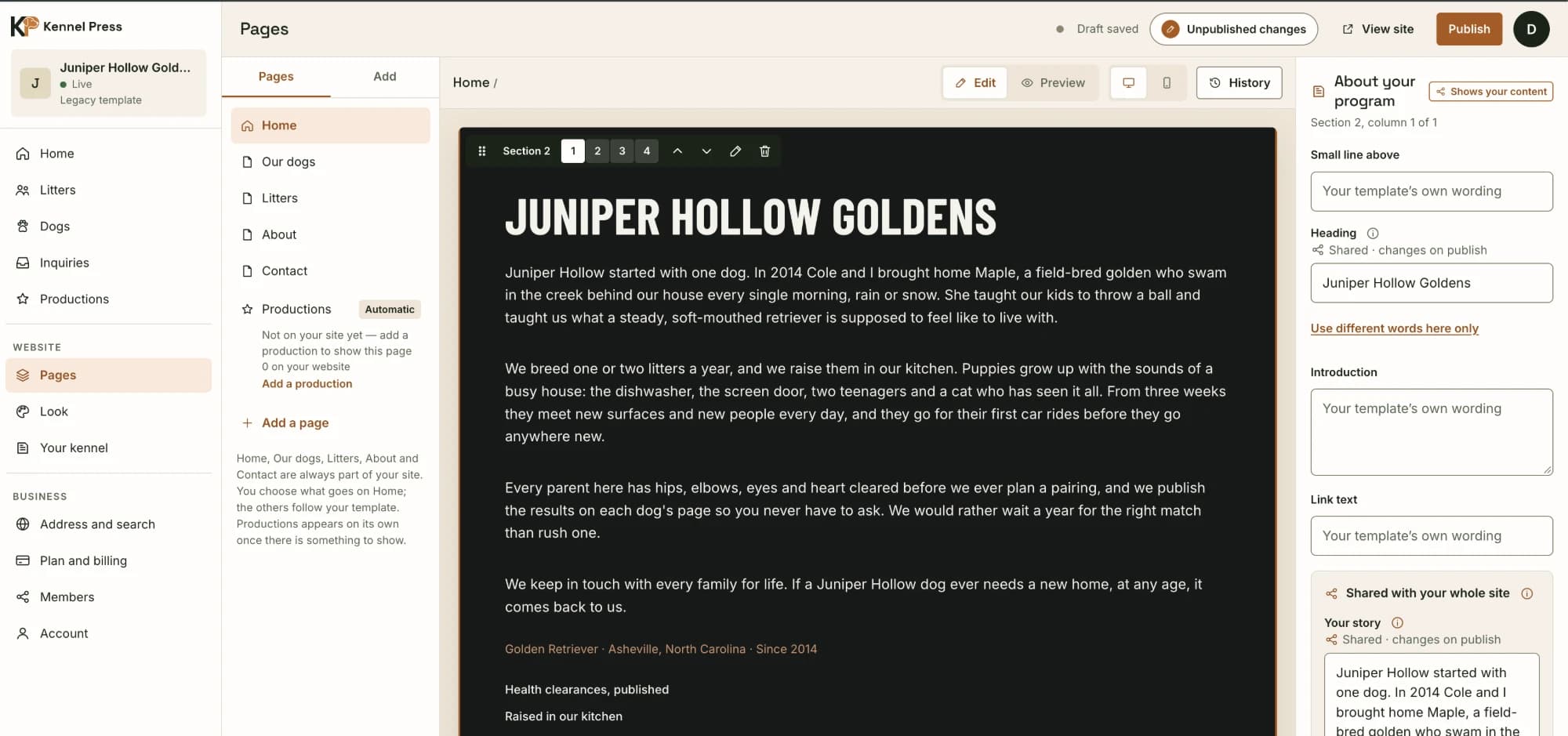
- Columns: 1, 2, 3 or 4.
- Column widths: with two or more columns, choose how the width is shared, such as half and half, or two thirds and one third. You can also drag the copper line between columns on the page.
- Background: Paper, Soft, Accent or Dark. These are your template's own colors.
- Width: Full, Standard or Narrow.
- Up, Down and Remove section.
Making a section narrower in columns never loses a piece. Pieces from a removed column move into the last column that's left.
Accent
Accent paints the whole section in your palette's accent color, and switches the words, links and buttons in it to colors that read clearly on that background. Use it for one section you want to stand out, such as a call to join your waiting list.
Some palettes use the same color for Accent and Dark. In those, Accent isn't offered, because it would look the same as Dark.
Narrow
Narrow keeps the pieces in the section to a comfortable reading width, centered on the page, while the background still runs edge to edge. It suits long text, such as your story or questions and answers. Standard does the same at your template's usual width; Full lets the pieces use the whole width.
Words and photos your whole site shares
Some things appear on more than one page: your kennel name, short name, tagline, your story, your contact email and phone, your opening banner photo and your About photo. These are shared.
When a piece uses one of them, its field carries a Shared tag, and a line tells you where else it appears, such as "the header and footer of every page".
- Change it for your whole site: type in the field. The change waits in this page's draft, and goes live everywhere when you publish.
- Change it on this page only: choose Use different words here only (or Use a different image here only for a photo). Now the words belong to this piece alone.
- Go back to the shared version: choose Use your … instead.
The same settings are also on their own screens, such as Story, Contact and Site photos. Those screens save at once, without a draft.
Upload a photo while you edit
Every photo field in the right panel has Choose a photo. It opens a sheet with all your site's photos.
- Choose Upload a photo to add a new one from your computer or phone. iPhone photos are converted for you.
- Wait for "Preparing your photo…", "Uploading…" and "Saving…" to finish.
- The photo is selected in the field.
Each photo is resized and has its location data removed before it is stored. It joins your site's photos, and counts toward your plan's photo allowance. It changes nothing on your live website until you publish.
After a photo is selected, choose Adjust beside it to see the shapes that place uses. Drag the photo to keep the important part in each frame, and use the zoom control when it is offered. A designed banner is never zoomed, because its lettering needs to stay whole.
Framing belongs to the photo, not the page draft. Save framing changes that photo everywhere it is used, and the change is live straight away on a published website.
Under the photo, Describe the photo holds the words screen readers read aloud and search engines read. Type what the photo shows and choose Save description, or press Enter. Like framing, the description belongs to the photo: it changes everywhere the photo is used, straight away, without waiting for Publish. You can also write it on the Site photos screen.
Drafts and Publish
Everything you change on a page is saved as a draft, about a second after you stop. The top bar tells you where you are:
- Draft saved or Saving draft: your changes are safe.
- Unpublished changes: some of your pages are different from what visitors see. When more than one page has changes, it says how many. Press it to publish.
- Up to date: visitors see exactly what you see.
Each page has its own draft, and the Pages list marks a page with changes waiting as Unpublished, or New if it isn't on your site yet. One Publish puts every page's changes live together, so a page you just added appears on your site, and in its menu if you chose that, as soon as you publish.
Publish your changes
- Press Publish in the top bar.
- Read the summary. It lists every page that will change, with new pages marked New, and what else changes: any shared words or photos you changed, and where else they appear. Nothing that isn't in the list goes live.
- Press Publish now.
If your website isn't public yet, the button says Publish Website, and it publishes your pages and your website together.
Go back
- Version history: choose History above the page. Every publish is kept there, page by page. Restore copies an older version into your draft; nothing changes for visitors until you publish it.
- Throw away your draft: under "Your draft" in the right panel, choose Go back to the version visitors see. This drops every unpublished change on the page, including shared words you changed here.
What to expect
- Your draft saves about a second after each change. You never need a Save button.
- If your connection drops, your changes are kept on this device. When you come back, the editor says "Restored the changes kept on this device."
- A published page updates for visitors within a few seconds.
- Pieces that show your dogs and litters keep themselves up to date. You don't need to publish a page again when you add a dog.
- The first time you publish, your account may need to be confirmed, or your website reviewed, before it goes public. The message after Publish tells you which.
If something goes wrong
- "Changed in another window." A page was saved somewhere else, perhaps in another tab, or by someone else who edits your website. The message names the page, and nothing was published. Press Reload to see the latest version, then publish again.
- "… change … differently." Two pages change the same shared setting, such as your tagline, to different words. Make them match on both pages, then publish.
- "Which do you want to keep?" You changed a shared setting on this page, and it was also changed somewhere else, on its own screen or by publishing another page. Choose Keep what you wrote here or Keep what your site has now for each one, then publish.
- "Not saved." with Try again. The editor couldn't reach us. Press Try again. If you're offline, your changes are kept on this device until you're back.
- A piece says it's hidden on your site. It needs content you haven't added yet. Follow the button in the right panel to add it.
- Accent isn't offered. Your palette uses the same color for Accent and Dark. Choose Dark, or try another palette under Look.
- A photo won't upload. Very large files are refused; try a smaller copy, or a JPEG. If several photos are still uploading, let them finish first.
Still stuck? Contact support and tell us which page you were editing.