
The editor is where you keep your website up to date. This guide explains what each part of it is for, which changes reach your public website straight away and which wait for Publish, and a sensible order to set things up in.
The sidebar
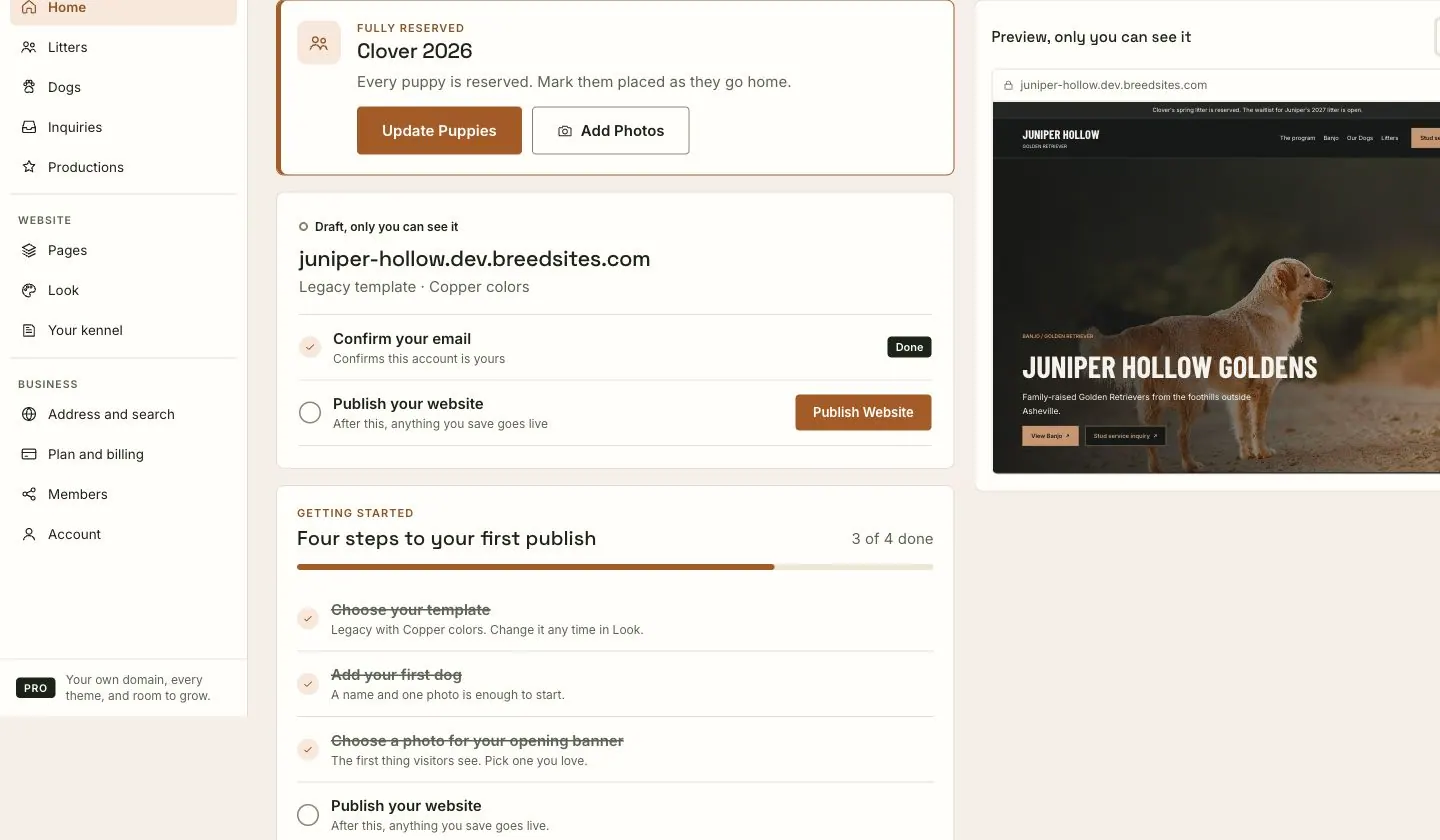
The sidebar groups the editor's screens by the job you're doing. On a phone, the most-used screens sit in the bar along the bottom, and More opens the rest.
Everyday
- Home shows your website at a glance, and what to do next. Draft my website starts here.
- Litters holds your litters, past and planned, and the puppies in each.
- Dogs holds your dogs: their profiles, photos, health testing and pedigrees.
- Inquiries collects the messages families send from your website.
- Productions shows dogs you bred, in their new homes.
Website
- Pages is the page editor, where you lay out each page by clicking on it. See Editing your site on the page.
- Look is your template, colors and fonts.
- Your kennel holds your story, contact details, the lists shown on your website and your site photos, such as your opening banner photo.
Business
- Address and search is your web address, your own domain and how your website appears in search results. See Connecting your own domain.
- Plan and billing is your plan and payments. See Plans and billing.
- Members is the people who can edit your website. See Inviting owners and editors.
- Account is your own sign-in.
What goes live when
There are two kinds of change, and it helps to know which is which:
- Records save and show straight away. Your dogs, litters, pedigrees, Look and the screens under Your kennel save as you make them. If your website is published, visitors see the change within seconds.
- Pages wait for Publish. Changes in the page editor are kept as a draft for that page until you press Publish. See Editing your site on the page.
A good order to set things up
- Your kennel: your name, story and contact details. Many pieces of your website read from here.
- Look: choose a template and colors. You can change them any time, and your words come with you.
- Dogs: add them one at a time, or import them from a spreadsheet. Add each one's pedigree.
- Litters: add your current or planned litter.
- Pages: lay out your homepage, starting with the opening banner. Or let Draft my website write a first draft for you.
- Publish your website.
What to expect
- The editor works on a phone as well as on a computer.
- You can view your public website any time from the account menu, once it's published.
- Your website keeps working on its free address on every plan.
If something goes wrong
- You can't see Plan and billing, Members or Address and search controls. Some of these are for owners only. Ask an owner of your website.
- A screen says your plan has reached a limit. See Plans and billing for what each plan includes.
- Your change isn't on your website. If you made it in the page editor, it's waiting in a draft. Press Publish.
Still stuck? Contact support and tell us which screen you were on.