
Every dog on your website can have a pedigree of up to 5 generations: 62 ancestors. You can type it in, link ancestors that are your own dogs, or let us read the names from a photo, a PDF or a web page, then check every name before it is saved.
Where the pedigree lives
- Choose Dogs in the sidebar and open a dog.
- Scroll to the Pedigree card.
The tree starts with "This dog" on the left, then the parents, grandparents and so on to the right. Generations are counted the way registries count them: the parents are the first generation.
The tree opens at 3 generations. Use Generations shown to show more, up to 5. Hiding generations never deletes anything; the editor tells you how many recorded ancestors are in hidden generations.
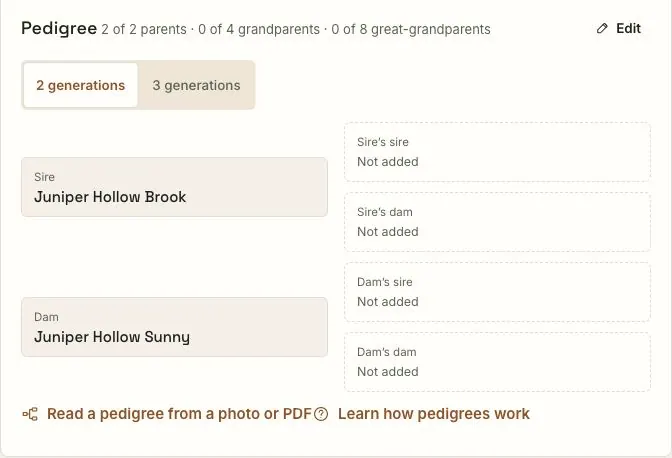
On the public profile, the same recorded names appear with a reminder that the kennel entered them and visitors should check original records.
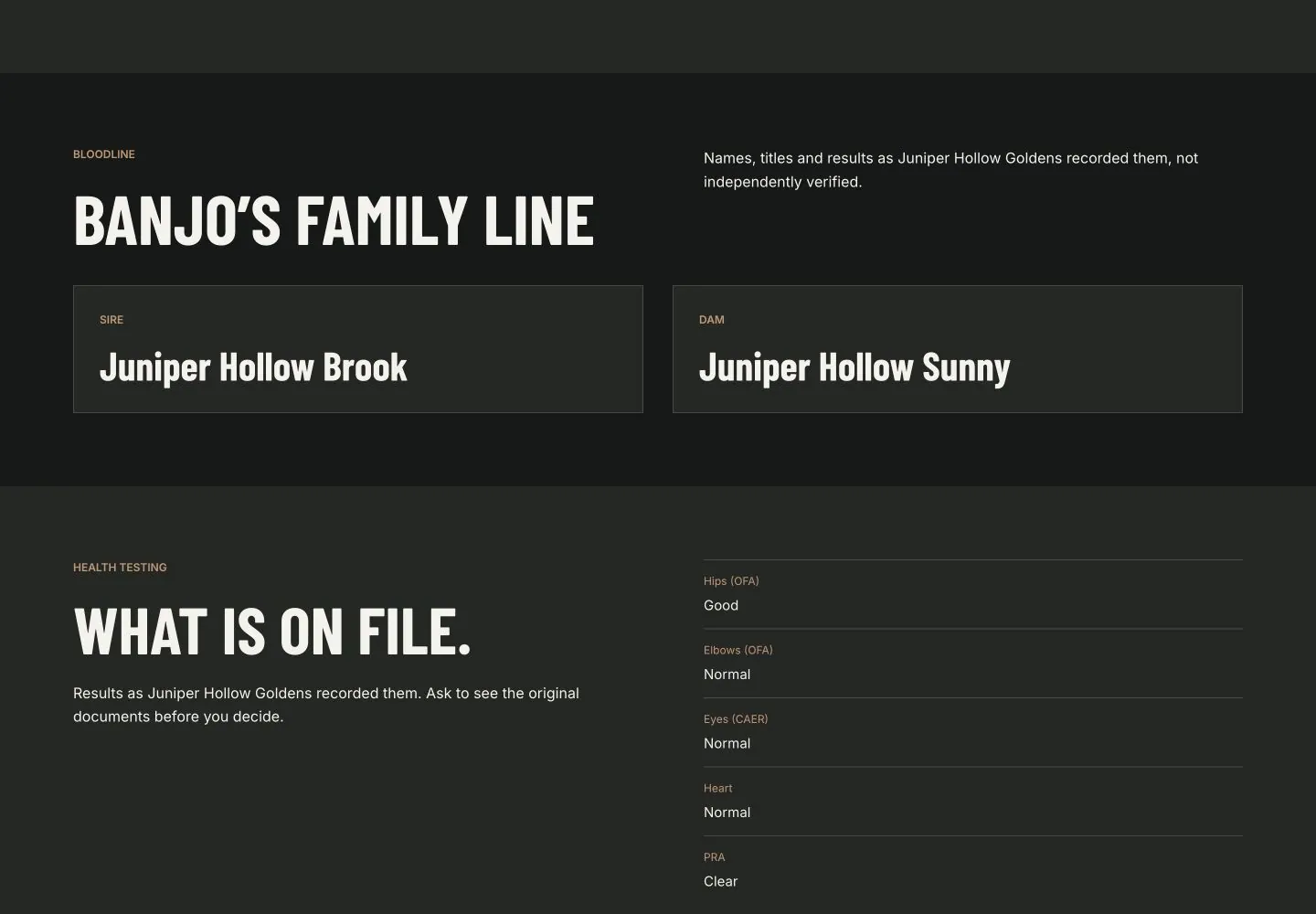
Fill in an ancestor
- Press an empty position, such as Add sire’s dam.
- Under Someone else’s, fill in the fields you have:
- Name: the registered name, as on the papers.
- Titles: as on the papers, for example "CH".
- Color.
- Registration or results: shown under the name, such as a registration number.
- Press Save.
- To add a photo of the ancestor, open the position again and choose Add a photo under Photo. A photo can only be added once the position is saved, and it is saved as soon as you choose it.
Each position saves on its own. If your website is published, the change is on it straight away; there is no separate publish step for a pedigree.
To clear a position, open it and press Remove.
Link one of your own dogs
If an ancestor is one of your own dogs on your website, link it rather than typing its name.
- Press the position.
- Choose Your dogs.
- Pick the dog from the list. Only dogs that fit the position are offered: males for sire positions, females for dam positions.
- Press Save.
A linked ancestor carries on from its own record. Your website shows its name and photo, and continues the tree from its own pedigree, so you only enter a line once. Anything you type into Titles, Color or Registration on the linked position shows instead of what the linked record has.
If none of your dogs fit, the editor says so. Type the name under Someone else’s instead.
Read a pedigree from a document
Typing 62 names is a lot of work. Instead, on the Pedigree card choose Read a pedigree from a photo or PDF. We read up to 3 generations, and you check every name before anything is saved.
You have three ways to give us the pedigree:
- Take a photo of a printed pedigree or registration certificate. Lay it flat in good light, with all four corners showing.
- Upload a photo or PDF: a JPEG, PNG or WebP photo, or a PDF, up to 4 MB.
- Paste a link to a public pedigree page, such as one on PedigreeDatabase, Bullypedia or Pitpedia.
We read the document or page once and don’t keep it.
Which websites can be read from a link
Any public pedigree page can be read, as long as the website allows it. Before we open a page, we check the website's robots.txt, the file where a site's owner says which automated tools may read it.
- If the site says no to automated readers, or says no to AI tools in particular, we don’t open the page.
- The same check runs again if the link redirects to another site.
- A link that needs a login, or a page that is really a PDF or image, can't be read from the link.
When a site can't be read, the message tells you why, and the reading doesn't count toward your monthly allowance. A screenshot always works: take a screenshot of the pedigree page, or save it as a PDF, then use Upload a photo or PDF.
Check every name
After reading, you see the document on one side and the tree on the other. Every name starts out marked, and stays marked until you confirm it:
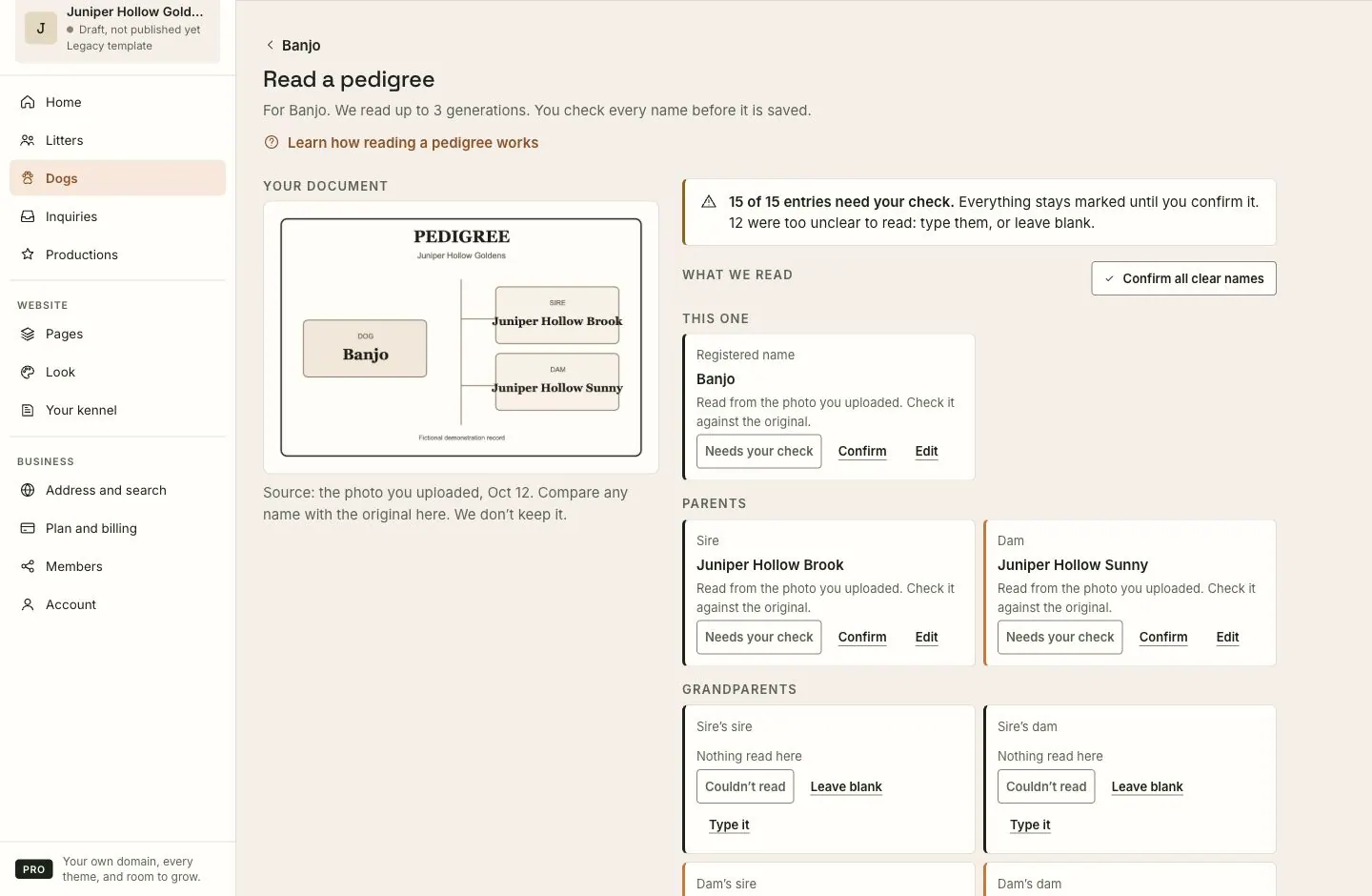
- Needs your check: we read it clearly. Compare it with the document.
- Not sure, check this: we weren't sure. Look closely.
- Couldn’t read: nothing was read there. Type it, or leave it blank.
- Checked: you confirmed it.
For each name, choose Confirm, Edit to correct it, or Leave blank. Confirm all clear names confirms every name we read clearly, in one go; the unsure ones still need you.
If a position already has a different name, the cell says which name it replaces.
When nothing is left to check, press Save pedigree.
What is saved
- Every name you confirmed, with its titles, color and registration.
- Blank positions are skipped, so nothing you already entered is erased.
- A position you overwrite this way is no longer linked to one of your dogs. Link it again if you need to.
- Photos of ancestors aren't read; add them by hand.
- The document or page itself is not kept.
How many readings you get
Readings are counted each calendar month and come with your plan:
- Free: 10 a month.
- Pro: 50 a month.
A reading only counts when it finds at least one name. A reading that fails doesn't count. The start screen shows how many you have left this month. When they're used up, more arrive on the first of next month, and you can always type the pedigree in yourself.
What to expect
- Up to 5 generations on every plan. Depth isn't a plan limit.
- Reading a document usually takes under a minute.
- Saved names are on your website straight away if it is published.
- Your template decides how many generations visitors see at first, with a control to show the rest.
If something goes wrong
- "… doesn’t allow automated reading at this time." The website's owner has asked automated tools not to read it. Take a screenshot or save the page as a PDF, then upload it.
- "We couldn’t find a pedigree in that file." Try a sharper photo with all four corners showing, in good light. It didn't use a reading.
- "That file is too large." Use a photo or PDF under 4 MB. Photos from your phone are shrunk for you; a large PDF isn't.
- "Use a photo (JPEG, PNG or WebP) or a PDF." Other file types can't be read. Take a screenshot instead.
- "This month’s readings are used up." More arrive on the first of next month. You can type the pedigree in any time.
- "That’s a lot of reading in one hour." Wait a little and try again.
- The dog you want to link isn't in the list. It's the wrong sex for that position, or it isn't on your website yet. Add it under Dogs first.
Still stuck? Contact support and tell us which dog's pedigree you were working on.